Workflow Tool»
The Workflow Tool stack setting allows you to choose between:
- OpenTofu — out-of-the-box support for OpenTofu.
- Custom — allows you to customize the commands that are executed as part of the workflow.
OpenTofu»
The OpenTofu option gives you out-of-the-box support for OpenTofu. All you need to do is choose the version you want to use and you're good to go.
If you need extra flags, you do not need the Custom option. Have Spacelift manage the binary and use TF_CLI_ARGS_<command> for the extra flags. There are only two limits to this feature:
- The values are static strings and cannot reference the workspace name.
- Flags cannot be added to the
applystage.
Custom»
This option allows you to customize the commands that are executed as part of Spacelift's OpenTofu workflow. This can be useful if you want to run a custom binary instead of one of the OpenTofu versions supported out of the box by Spacelift.
Info
Note that any custom binary is considered third-party software and you need to make sure you have the necessary rights (e.g. license) to use it.
How does it work?»
Each stage of the OpenTofu workflow uses certain commands to perform tasks such as generating a plan, or getting the current state. We provide a built-in set of commands to use for OpenTofu, but you can also specify your own custom commands. You do this via a file called .spacelift/workflow.yml.
The following is an example of what the default workflow commands look like for OpenTofu:
1 2 3 4 5 6 7 8 9 10 11 12 13 14 15 16 17 18 19 20 21 22 23 24 25 26 27 28 29 30 31 32 33 34 35 36 37 38 39 40 41 42 43 44 45 46 47 48 49 50 51 52 53 54 55 56 57 58 59 60 61 62 63 64 65 66 67 68 69 70 71 72 73 | |
OpenTofu-specific features need the built-in workflow
Concise output, CPU profiling and structured -json-into logs are only applied by the built-in OpenTofu workflow. With a custom workflow, .Concise is always false, .JsonIntoPath is always empty, no CPU profile is captured, and Spacelift does not read any -json-into file you write yourself. The stack-level toggles for these features have no effect while the workflow tool is set to Custom.
Warning
Spacelift treats any non-zero exit code from a workflow command as an error. Do not use flags like -detailed-exitcode with tofu, since they cause the command to exit with a non-zero status even on success.
How to configure a custom tool»
To use a custom tool, three things are required:
- A way of providing the tool to your runs.
- A way of specifying the commands that should be executed.
- Indicating that you want to use a custom tool on your stack.
Providing a tool»
There are two main ways of providing a custom tool:
- Using a custom runner image.
- Using a before_init hook to download your custom tool.
Specifying the commands»
Your custom workflow commands need to be provided in a workflow.yml file stored in the .spacelift folder at the root of your workspace ({reporoot}/.spacelift/workflow.yml). Only the .yml extension is read. There are three main ways of providing this:
- Via a mounted file in the stack's environment.
- Via a mounted file stored in a context.
- Directly via your Git repo.
The option you choose will depend on your exact use-case, for example using the stack's environment allows you to quickly test out a new custom tool, using a context allows you to easily share the same configuration across multiple stacks, and storing the configuration in your Git repo allows you to track your settings along with the rest of your code.
Here is an example configuration to use a fictional tool called super-iac:
1 2 3 4 5 6 7 8 9 | |
Using a custom tool on a stack»
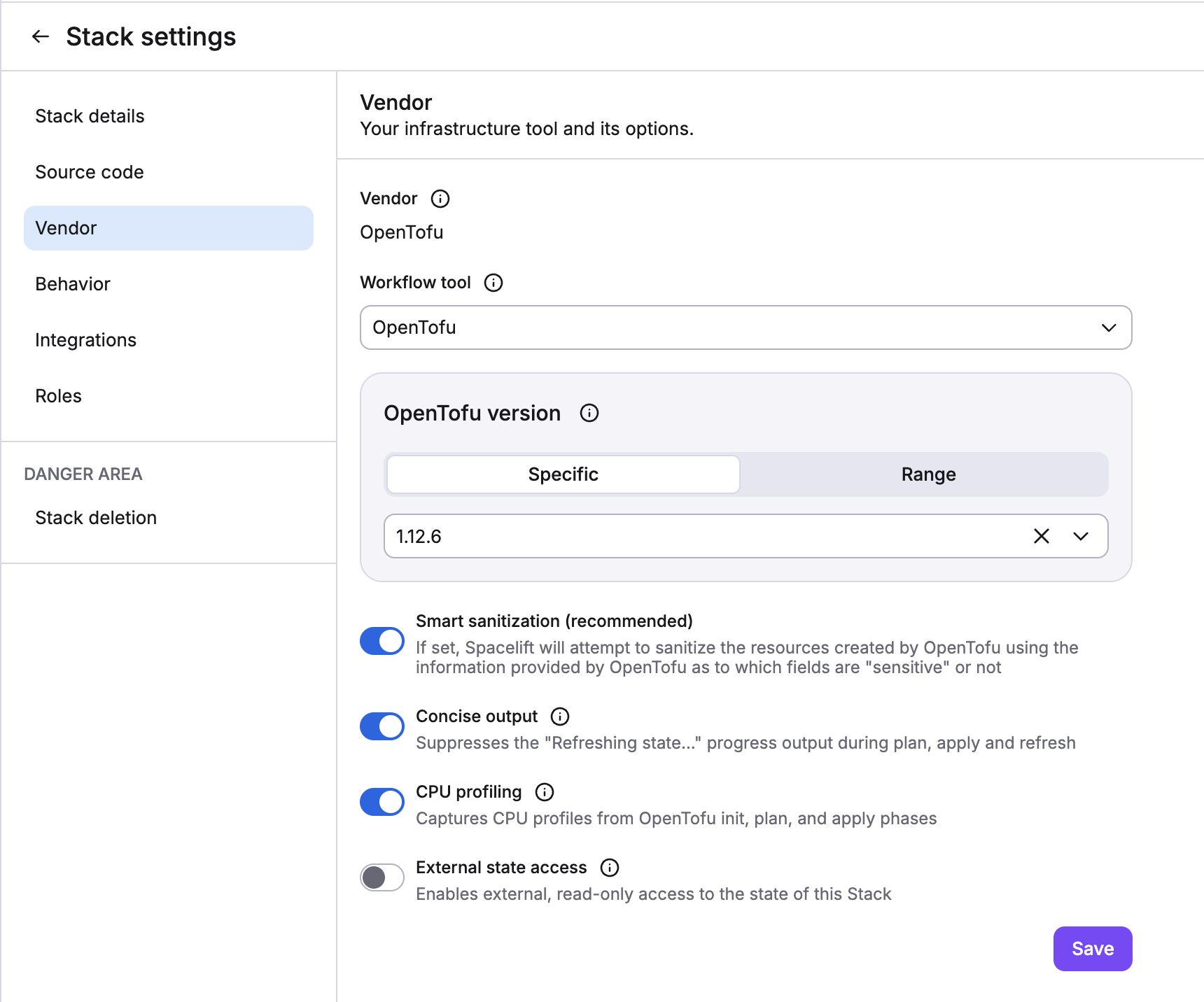
To update your stack to use a custom workflow tool, edit the Workflow tool setting in the Vendor settings:
When you choose the Custom option, the version selector will disappear:
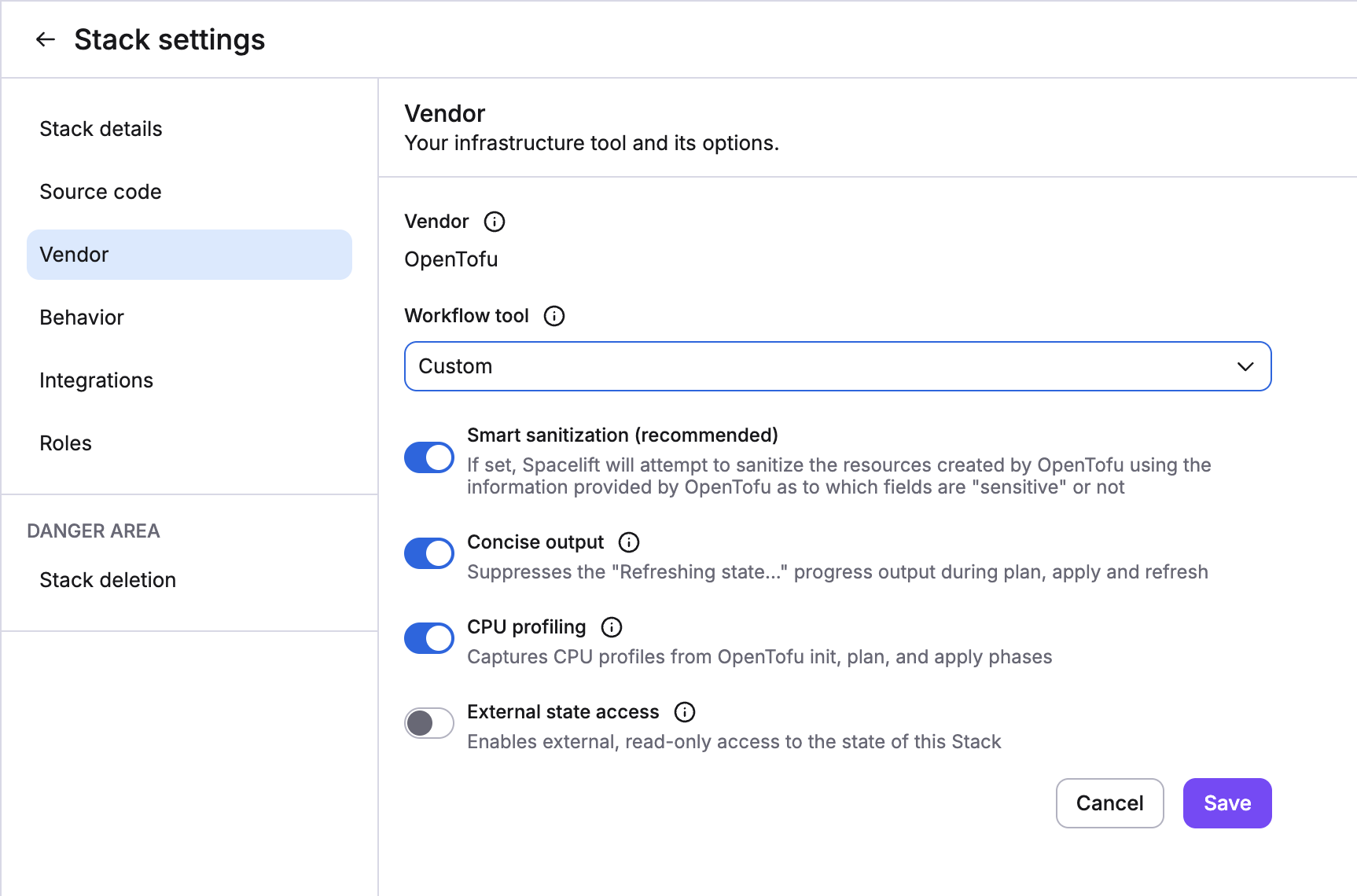
This is because you are responsible for ensuring that the tool is available to the run, and Spacelift will not automatically download the tool for you. Setting a version together with the Custom tool is rejected with specifying version for custom tool workflow is not possible.
Runtime Configuration»
You can also use runtime configuration to configure the workflow tool for a stack. This allows you to try out a different configuration as part of a PR without adjusting your stack settings.
The following example shows how to configure a particular stack to use a custom tool:
1 2 3 4 5 6 | |
Spacelift ignores version in the opentofu block when workflow_tool is CUSTOM.
Troubleshooting»
Workflow file not found»
If no workflow.yml file has been created but your stack has been configured to use a custom tool, you may get an error message like the following:
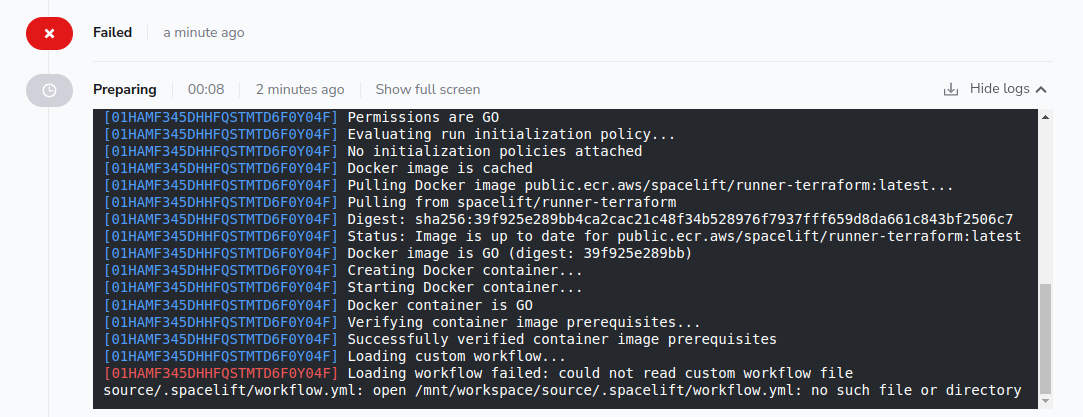
The message reads Loading workflow failed: could not read custom workflow file source/.spacelift/workflow.yml. If this happens, please ensure you have added a .spacelift/workflow.yml file to your Git repository, or attached it to your stack's environment via a mounted file.
Invalid source: project root during runs»
If your workflow command file has been mounted at the wrong location, you may receive an error with the failed run like Invalid source: project root <root listed in workflow file> does not exist. Your custom workflow tool will not work. Make sure the folder is at the actual root of your workspace.
For example, if you mounted the file at /mnt/workspace/.spacelift/workflow.yml, try /mnt/workspace/source/.spacelift/workflow.yml.
Commands missing»
If your .spacelift/workflow.yml does not contain all the required command definitions, or if any commands are empty, you will get an error message like the following:
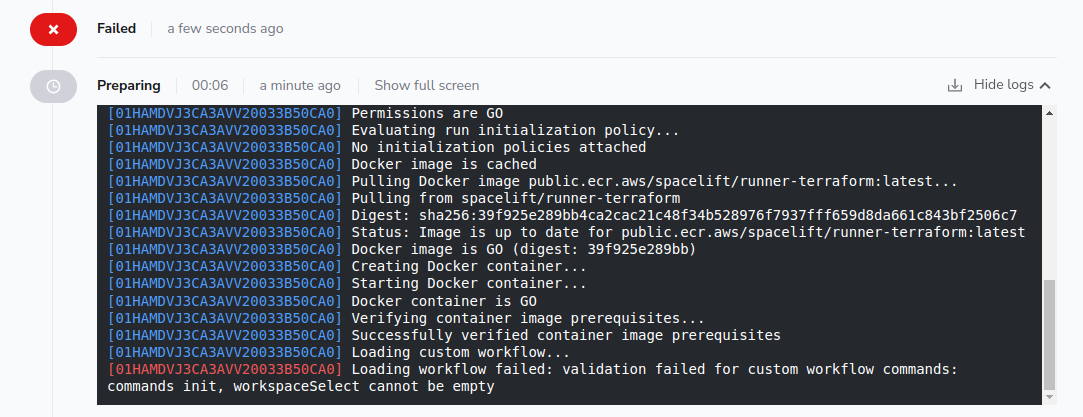
The message reads validation failed for custom workflow commands: commands init, workspaceSelect cannot be empty. This check is designed as a protection mechanism in case new commands are added but your workflow hasn't been updated. In this case, please provide an implementation for the specified commands (in the example the init and workspaceSelect commands). Every template, including destroy, is also parsed at this point, so a template syntax error fails the run during initialization rather than when the command is first used.
Tool not found»
If your custom tool binary cannot be found, the shell reports it and the phase fails with exit code 127, like the following:
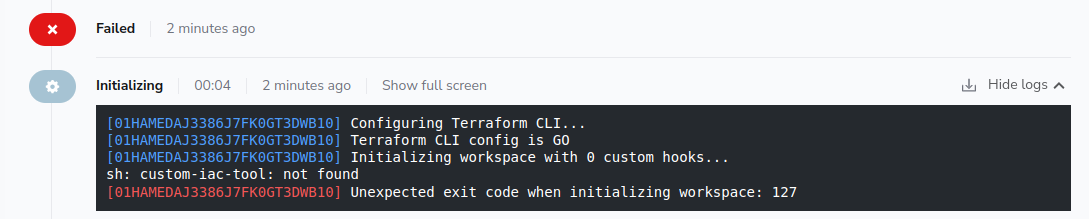
In this situation, please ensure that you are providing a custom workflow tool via a custom runner image or workflow hook.