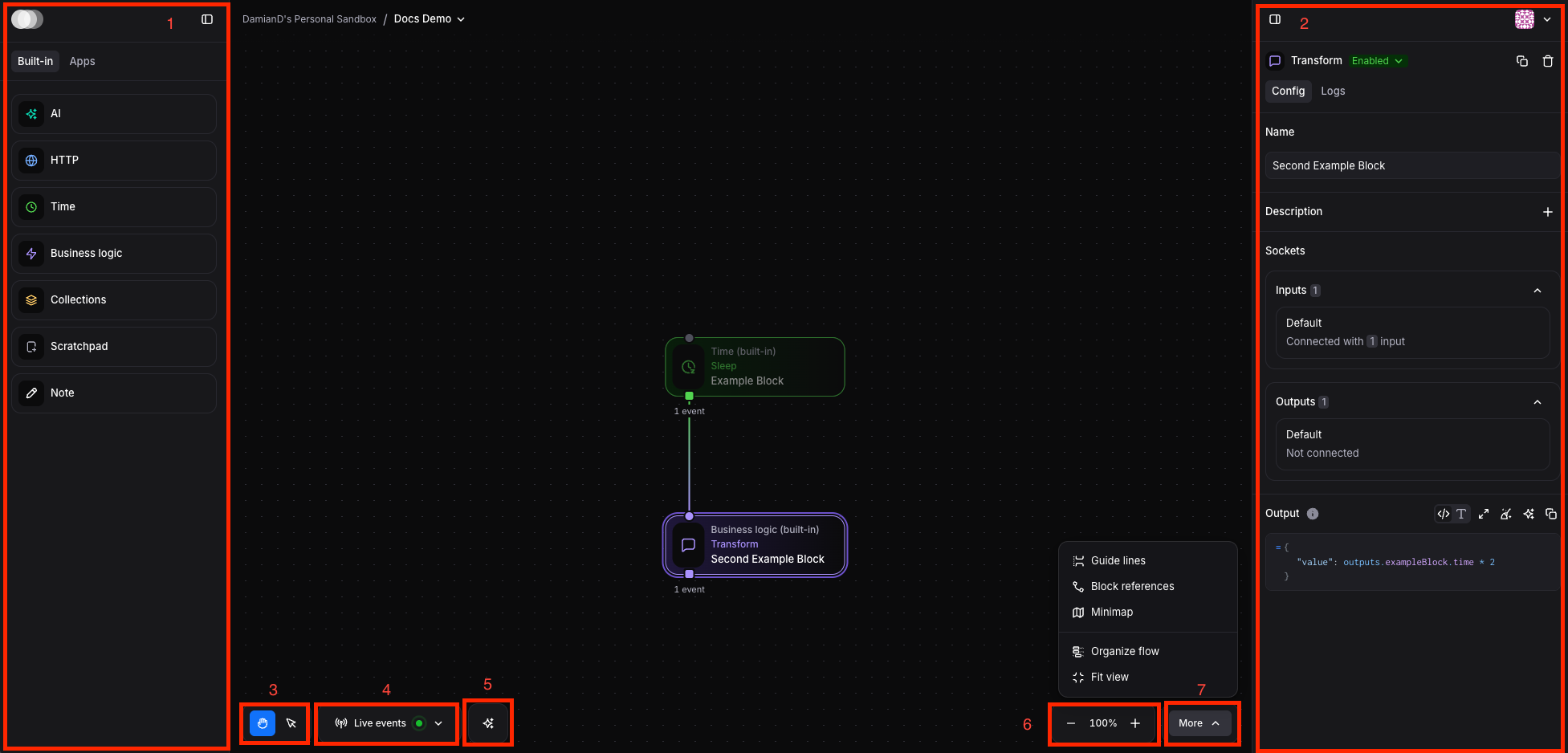
Flow Canvas Interface Overview
The Flow canvas is your visual workspace for building automation workflows. Here's how to navigate and use the interface effectively.
Interface Layout»
Canvas Navigation»
- Left sidebar for choosing block types
- Built-in blocks (AI, HTTP, Time, Business Logic, Collections, Memory, Errors, Data Tables, Forms, Spacelift Deploy, Note)
- Apps section for integrated services
- Right sidebar for setting block configuration for selected block including:
- Name and Description fields
- Sockets section with Inputs and Outputs
- Configuration details and JavaScript expression editor
- Cursor Mode Toggle
- Hand mode for moving around the canvas
- Cursor mode for selecting blocks
- Live Events Controls: Shows "Live events" with time duration options for monitoring event flow:
- Can display events from last 15 minutes, 30 minutes, 1 hour, 1 day, or turn off
- Green indicator shows it's currently active
- When an invocation is selected in the Invocations sidebar, the control instead shows that invocation and the counters only include its events; picking a time window clears the selection
- AI Assistant Toggle: Control for toggling the AI assistant on/off in the left sidebar
- Canvas Zoom Controls: Shows "100%" zoom level with + and - buttons for adjusting the canvas view
- Canvas Organization Options: Additional menu options for managing and organizing the canvas layout
- The center canvas area shows a simple flow with two connected blocks: "Example Block" (Time/Sleep block) connected to "Second Example Block" (Business Logic/Transform block)