Get started with Intent»
This walkthrough connects Claude Code to Spacelift Intent, creates a project, and provisions a couple of safe resources. For all supported clients, OAuth scopes, and token-based authentication, see Connecting to the Spacelift MCP server.
📽️ Quick demo of Spacelift Intent with Claude Code below.

Connect your client»
Add the Spacelift MCP server to Claude Code:
For most accounts:
1 | |
For US-based accounts:
1 | |
Then authenticate:
- Start your MCP client, e.g. Claude Code.
- Run the
/mcpcommand and open the Spacelift MCP Server entry. The status shows needs authentication.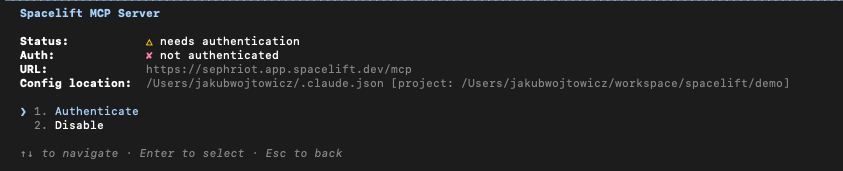
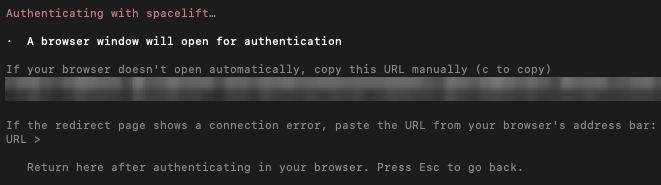
- Select Authenticate. Claude Code prints the OAuth URL and opens it in your browser.
- In the browser, approve the authorization request. Both the
mcp:readandmcp:writescopes are pre-selected. Leave both checked for a full-access session, or uncheckmcp:writeto get a read-only session that cannot mutate Spacelift or your cloud.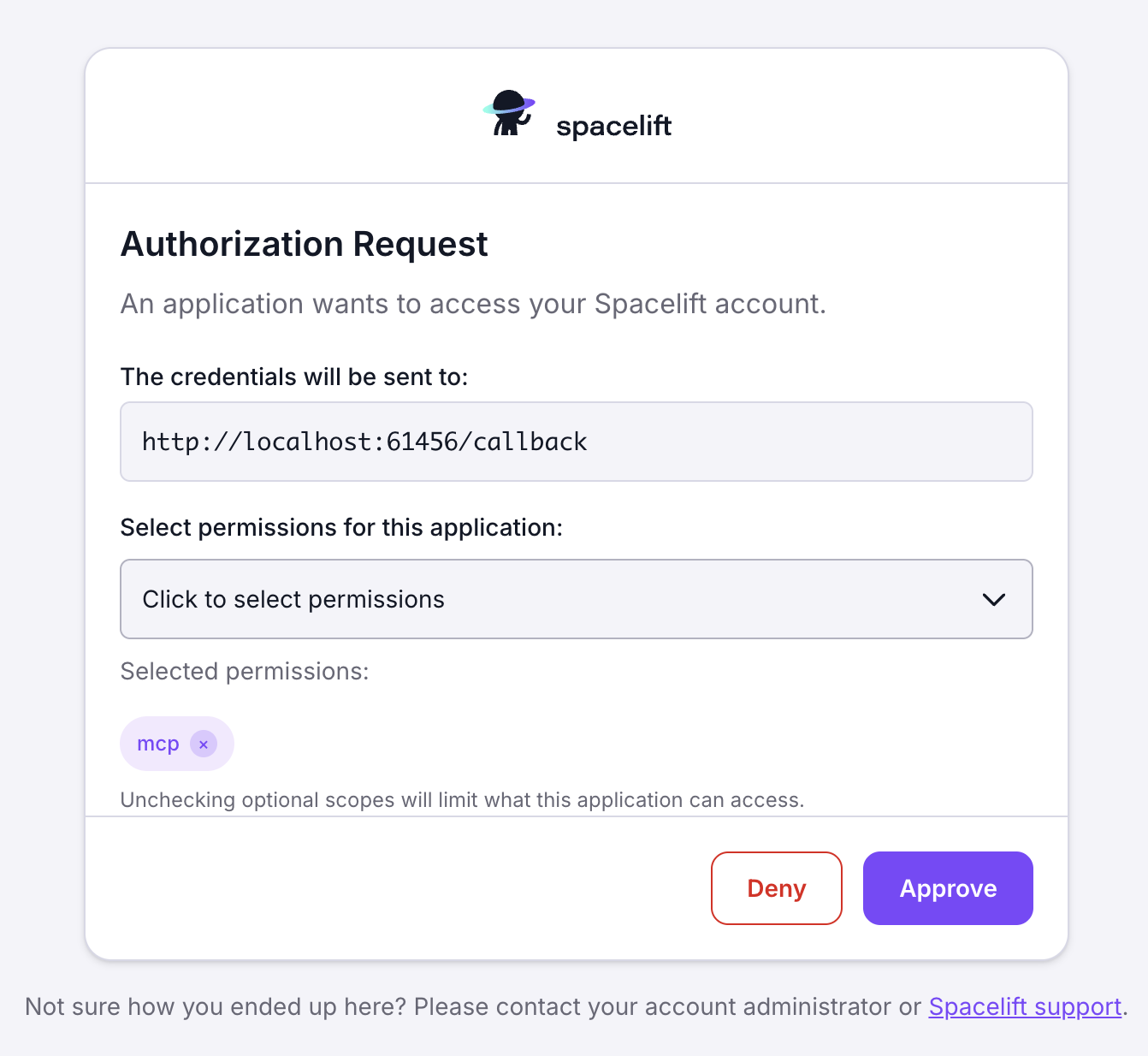
-
Back in Claude Code, the server now shows connected and exposes its tools, depending on the scopes you granted. A read-only (
mcp:read) session gets the tools that inspect Spacelift and your cloud. Grantingmcp:writeadds the tools that change Spacelift and provision infrastructure. See Capabilities for the current list.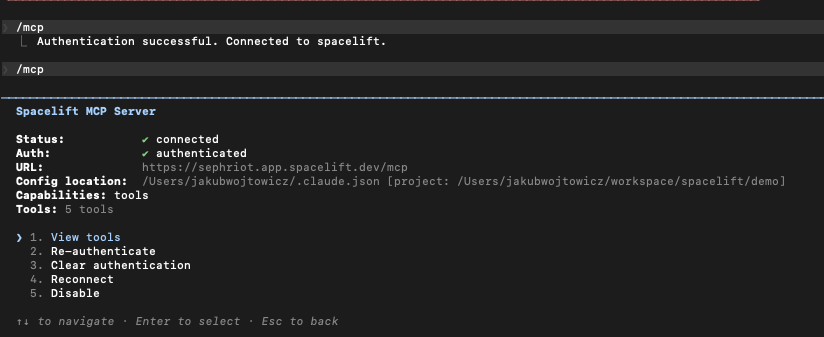
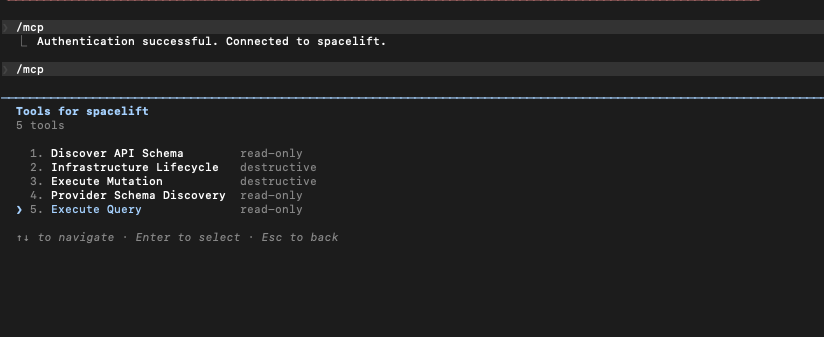
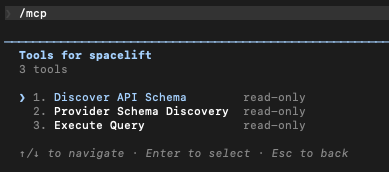
For the full per-client setup, the mcp:read / mcp:write scopes, and spacectl-token authentication, see Connecting to the Spacelift MCP server.
Create and use a project»
Projects scope your work and policy. You can create and lock a project entirely through natural language.
Create a project via chat prompt»
1 | |
The assistant creates the project for you.
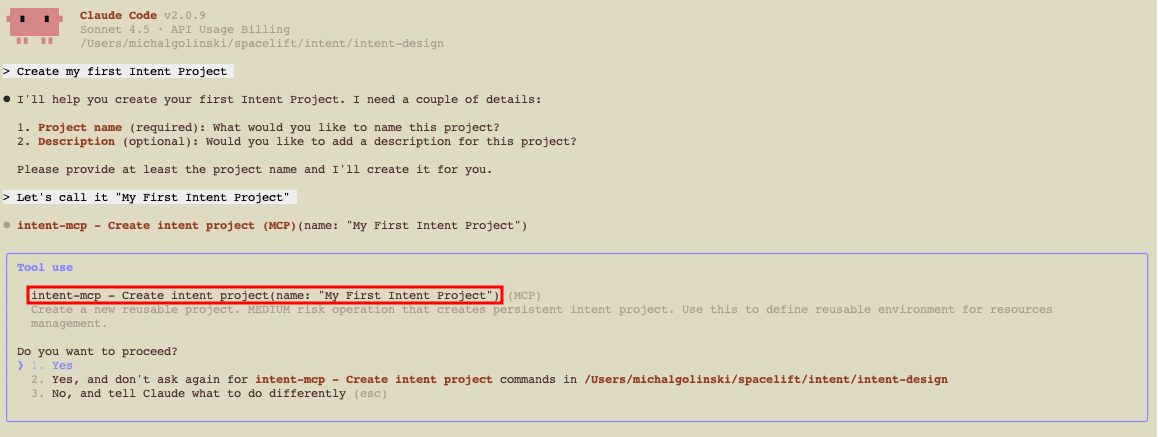
The project is created in a space you have access to. Mention a space in your prompt if you want a specific one.
Switch to the project»
Then make it your active project:
1 | |
The assistant switches to it. The first time you make a change, Spacelift locks the project to you so no one else can operate on it at the same time.
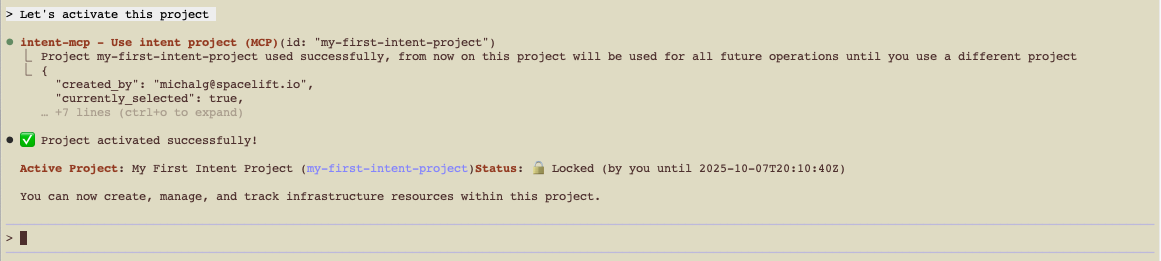
The lock clears itself after about five minutes of inactivity, and every change you make extends it. You can also release it explicitly through the UI or API.
Create your first resources»
Try something safe first using the random provider:
1 | |
Intent will:
- Discover the provider schema.
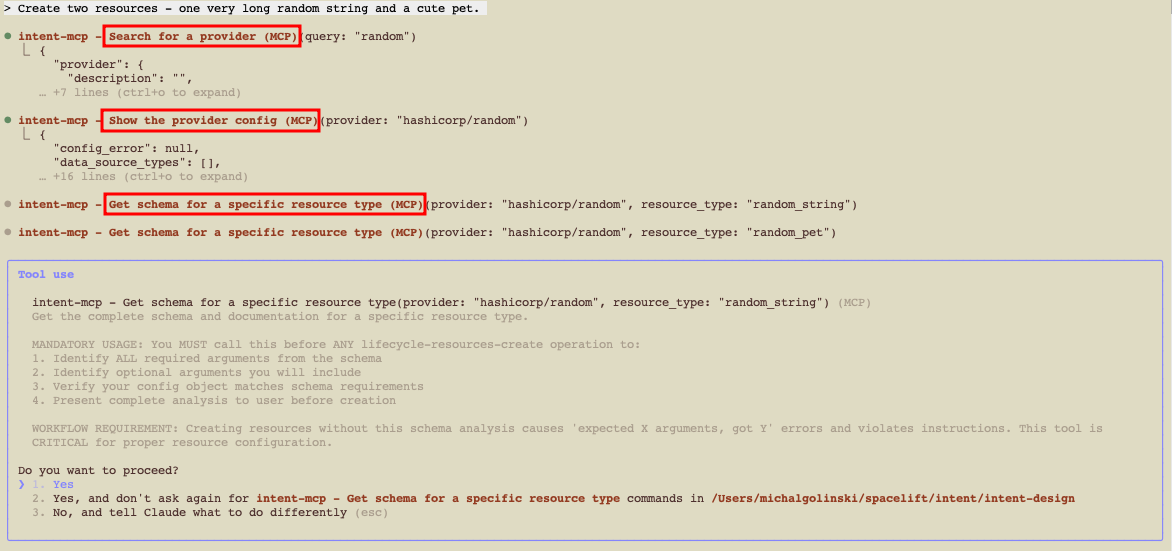
- Propose the operations.
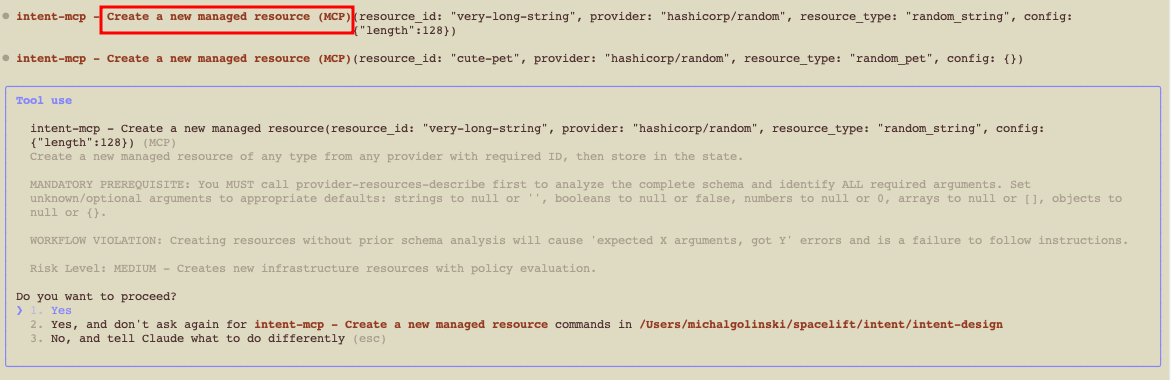
- Apply them under policy.
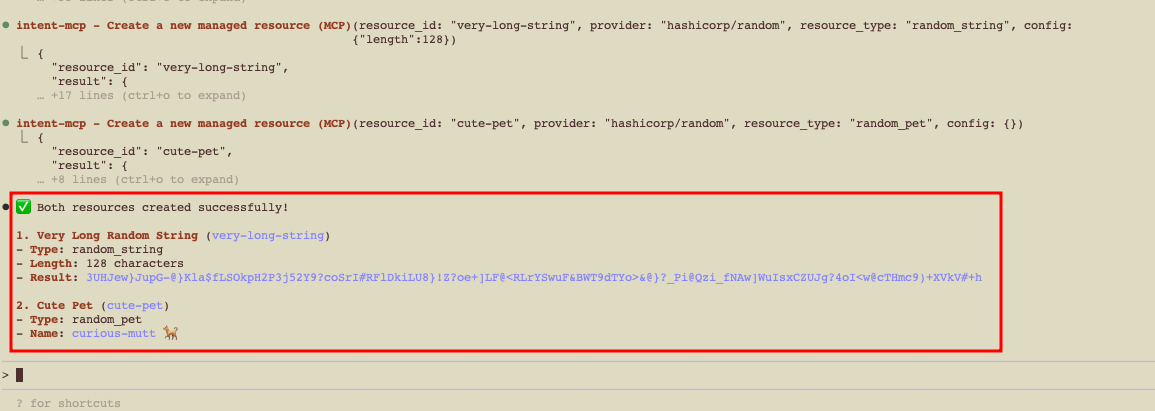
You'll get a short summary in chat once the resources are created.
Next, see Working with projects to add policies, attach a cloud integration, provision real resources, and import existing ones.