External accounts»
Spacelift users can connect their GitHub, Slack, or Microsoft Teams account to their Spacelift identity. Connecting an account allows Spacelift to recognize that the GitHub user janedoe, the Slack user Jane Doe, and the Spacelift user jane.doe@example.com are the same person. Therefore, notification policies to reach you personally on Slack, and your Git activity can be attributed to you as a Spacelift user.
Policies get this information too, so a policy that checks who triggered, approved, or authored a run or commit can also see that person’s linked accounts.
What connecting enables»
- Slack: Notification policies can mention you or send you direct messages, for example when a run you triggered needs confirmation, or a commit you authored breaks a tracked branch. See the notification policy documentation for examples.
- Microsoft Teams: You can use the
microsoft-teams-oauthfederation as policy input. For channel notifications, see MS Teams. - GitHub: Commits and pull requests you author are attributed to your Spacelift user, which policies can act on, for example to notify the commit author about the state of the runs their change triggered.
Each user can connect one account per provider, and each external account can only be connected to a single Spacelift user within the account.
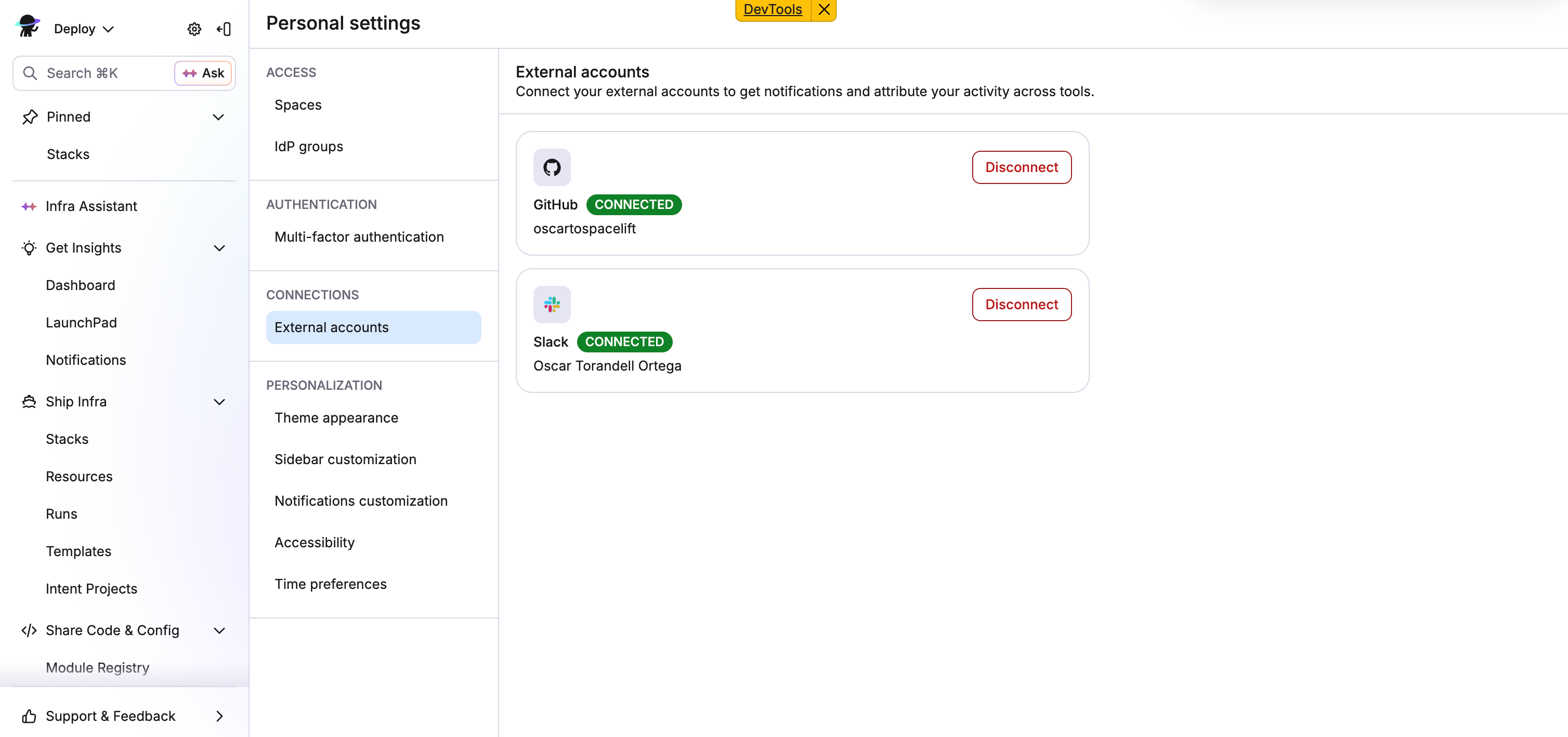
You can manage your connections by hovering over your name in the bottom-left corner, clicking Personal settings, then navigating to External accounts.
Prerequisites by provider»
GitHub»
- The user needs a GitHub account on
github.com. - Spacelift uses the same GitHub OAuth app as GitHub login. GitHub asks the user to grant the
read:orgscope. Spacelift reads only the user’s login and ID.
Slack»
- An account
adminmust first connect the Slack workspace to the Spacelift account. This is the existing Slack tile on the Integrations page. - The user needs a Slack account in that same workspace.
How Spacelift checks this:
- When the user clicks Link, Spacelift looks for the connected Slack workspace. If there is none, linking stops with a “no workspace” error before the user is sent to Slack.
- Spacelift sends the user to Slack. Slack asks the user to pick a workspace they are signed in to and to approve the
users:readpermission. - When Slack sends the user back, Spacelift compares the workspace the user picked with the connected workspace. If they differ, linking stops with a “workspace mismatch” error.
Spacelift does not look up workspace members, it only compares the workspace the user approved in with the connected workspace.
MS Teams»
- The user needs a Microsoft Teams account.
- Spacelift asks Microsoft for the
openidandprofilescopes and verifies the sign-in token. It stores the user’s Entra object ID and display name. - Spacelift does not check that the user has Teams. It only verifies the Microsoft sign-in.
Connecting an account»
Info
If your organization uses GitHub as its identity provider, your GitHub account is connected automatically when you sign in, so there is nothing to set up.
- On the External accounts page, click Connect on the GitHub/Slack/Microsoft Teams card.
- You will be redirected to the provider to authorize the connection.
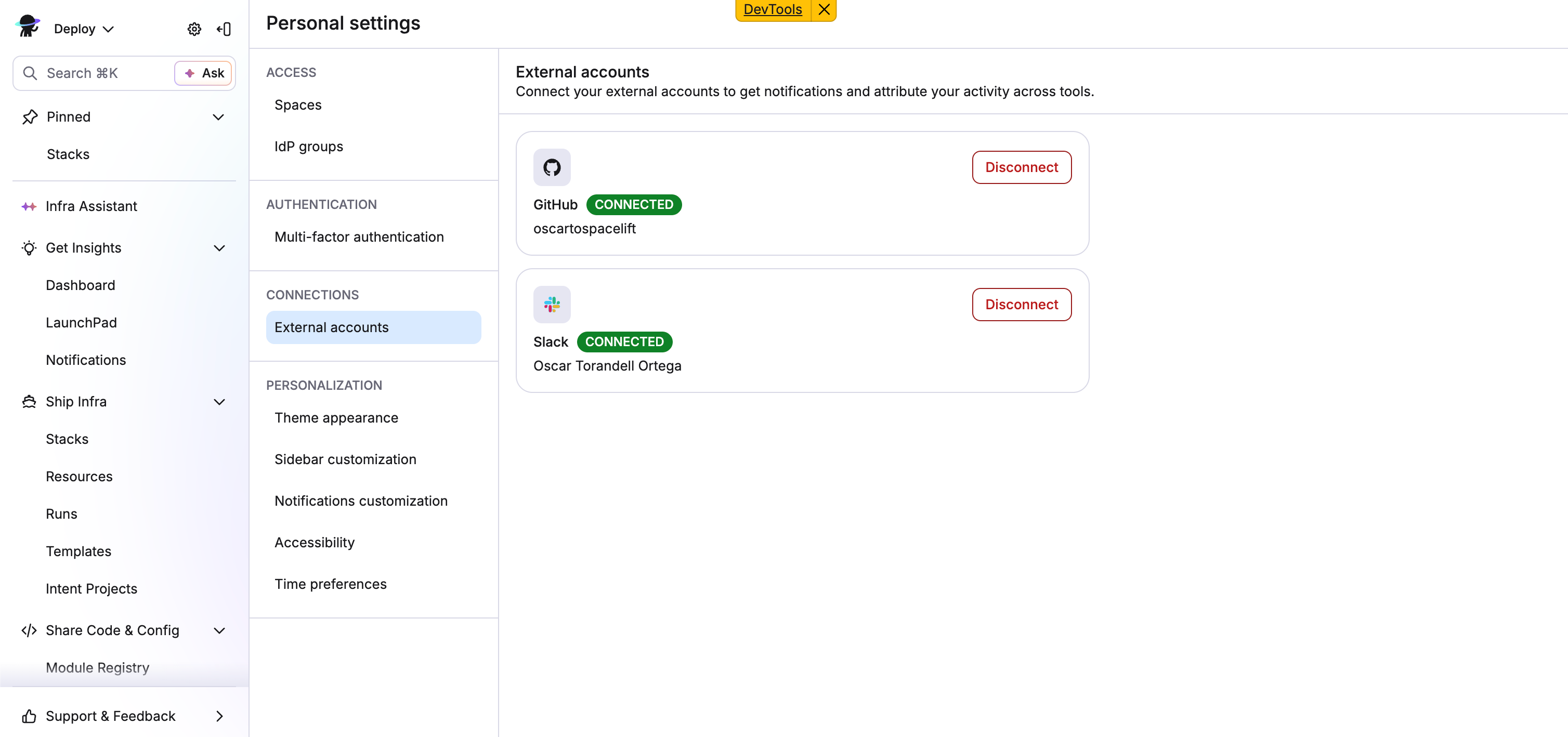
- After authorizing, you are redirected back to Spacelift. The card will show a green Connected badge and the linked account name.
Disconnecting an account»
Click Disconnect on the relevant card and confirm. Notifications and attribution that target you through that account stop working once it's disconnected.
Slack: When an admin disconnects the Slack workspace or connects a different workspace, Spacelift removes every Slack link in the account. Users must link again with the new workspace.
Warning
You cannot disconnect the account you use to sign in to Spacelift. For example, if your organization uses GitHub as its identity provider, your GitHub connection is your login credential rather than a linked account, and cannot be removed from this page.
This applies to SSO as well; the OIDC or SAML login will appear as a link, and the user cannot unlink it.
Every link and unlink is recorded in the audit trail as identity.link and identity.unlink.
What Spacelift stores»
Spacelift stores two values for each link: a stable ID, and a display name for the UI and policies.
| Provider | Stable ID | Display name |
|---|---|---|
| GitHub | GitHub user node ID | GitHub login, for example janedoe |
| Slack | Slack user ID, for example U04B2KXYZ |
Slack display name. If empty, the full name. The OAuth sign-in must succeed for the link to be created, but the name lookup is a separate call. If that call fails, the name is stored empty |
| Microsoft Teams | Entra object ID of the user | Name from the Microsoft profile. The tenant ID is written to the server log, not stored |
Spacelift does not store any access token from the provider. The token is used once during linking and discarded. For Slack, Spacelift revokes the token immediately after reading the display name.
Linking errors & troubleshooting»
| Message | Cause | Resolution |
|---|---|---|
| This GitHub/Slack account is already linked to another Spacelift user. | The external account is connected to a different user in this Spacelift account. | Disconnect it from the other user first, or contact your administrator. |
| Your organization hasn't connected a Slack workspace yet. | The account-level Slack integration is not set up. | Ask an administrator to configure the Slack integration. |
| This Slack account belongs to a different workspace than the one connected to your organization. | You authorized with a Slack account from another workspace. | Retry and authorize with an account from your organization's workspace. |
| This Microsoft Teams account is already linked. | You already have a different Microsoft account connected to Spacelift. | Disconnect the old Microsoft account and retry. |
| Something went wrong. Please try again. | A transient error occurred during the connection flow. | Retry; if the problem persists, contact support. |
Using linked accounts in policices»
Spacelift adds an identity object to policy input when it can identify the user:
1 2 3 4 5 6 7 8 9 | |
In this example:
ulid: Identifies the person inside Spacelift.federations: Has one entry per linked account, keyed by provider name. Login provider appears here too.- Possible keys:
oidc,saml,github-oauth,google-oauth,gitlab-oauth,microsoft-oauth,slack-oauth,microsoft-teams-oauth. - Only providers the account has linked are present.
Where the identity object appears»
| Policy type | Path in input |
Whose identity |
|---|---|---|
| Plan | spacelift.run.creator_session.identity |
The user who triggered the run |
| Plan | spacelift.previous_run.creator_session.identity |
The user who triggered the previous run |
| Approval | run.creator_session.identity |
The user who triggered the run |
| Approval | reviews.current.approvals[_].identity and reviews.current.rejections[_].identity, also under reviews.older |
The user who approved or rejected |
| Trigger | run.creator_session.identity |
The user who triggered the run |
| Notification | run_updated.run.creator_session.identity |
The user who triggered the run |
| Notification | run_updated.run.commit.author_identity |
The user who authored the commit |
Push, login, access, and task policies do not have the identity object.
When the identity object is present»
- Run creator: Present when a person triggered the run from the browser, or with a personal API key.
- Runs started by a VCS push or a schedule have no session, so
creator_session.machineistrueand there is no identity. - Runs started with an organization API key have a session but no identity.
- Runs started by a VCS push or a schedule have no session, so
- Approver or rejecter: Present when the review was made from the browser or with a personal API key.
- Reviews made with an organization API key have no identity.
- Commit author: Present when the commit author’s GitHub login matches a user who linked GitHub, or who logs in with GitHub.
- This works for stacks on
github.comonly. It does not work for GitLab, Bitbucket, Azure DevOps, or self-hosted GitHub Enterprise Server, because those usernames are not GitHub usernames.
- This works for stacks on
Examples»
The provider keys contain a hyphen, so you must use bracket notation in Rego. To compare people, use id, because username can change (or be empty, for Slack).
Approval policy: At least one approval must come from a person with a linked Slack account.
1 2 3 4 5 | |
Plan policy: Block runs triggered by a person who has not linked GitHub.
1 2 3 4 5 6 | |
This rule also blocks runs triggered with an organization API key. Those sessions are not machine sessions and carry no identity.
Approval policy: The person who wrote the commit cannot approve their own run.
1 2 3 4 5 6 7 | |
Notification policy: Post to Slack only when the commit author is a Spacelift user with a linked Slack account.
1 2 3 4 5 | |