Resources»
Specialized tools like Spacelift intimately unerstand the material they're working with. For infrastructure-as-code, it's important to understand your managed resources both from the current perspective and its historical context.
In Spacelift, navigate to Ship Infra > Resources. The Resources view displays the lifecycle of each resource managed by Spacelift, regardless of the technology used: OpenTofu/Terraform, Terragrunt, Pulumi, AWS CloudFormation, etc.
Stack-level resources»
Navigate to Ship Infra > Stacks, then click the name of the stack whose resources you want to view. Navigate to the Resources tab.
This screen shows you the stack-level resources view. By default, resources are grouped to help you understand the structure of each of your infrastructure projects.
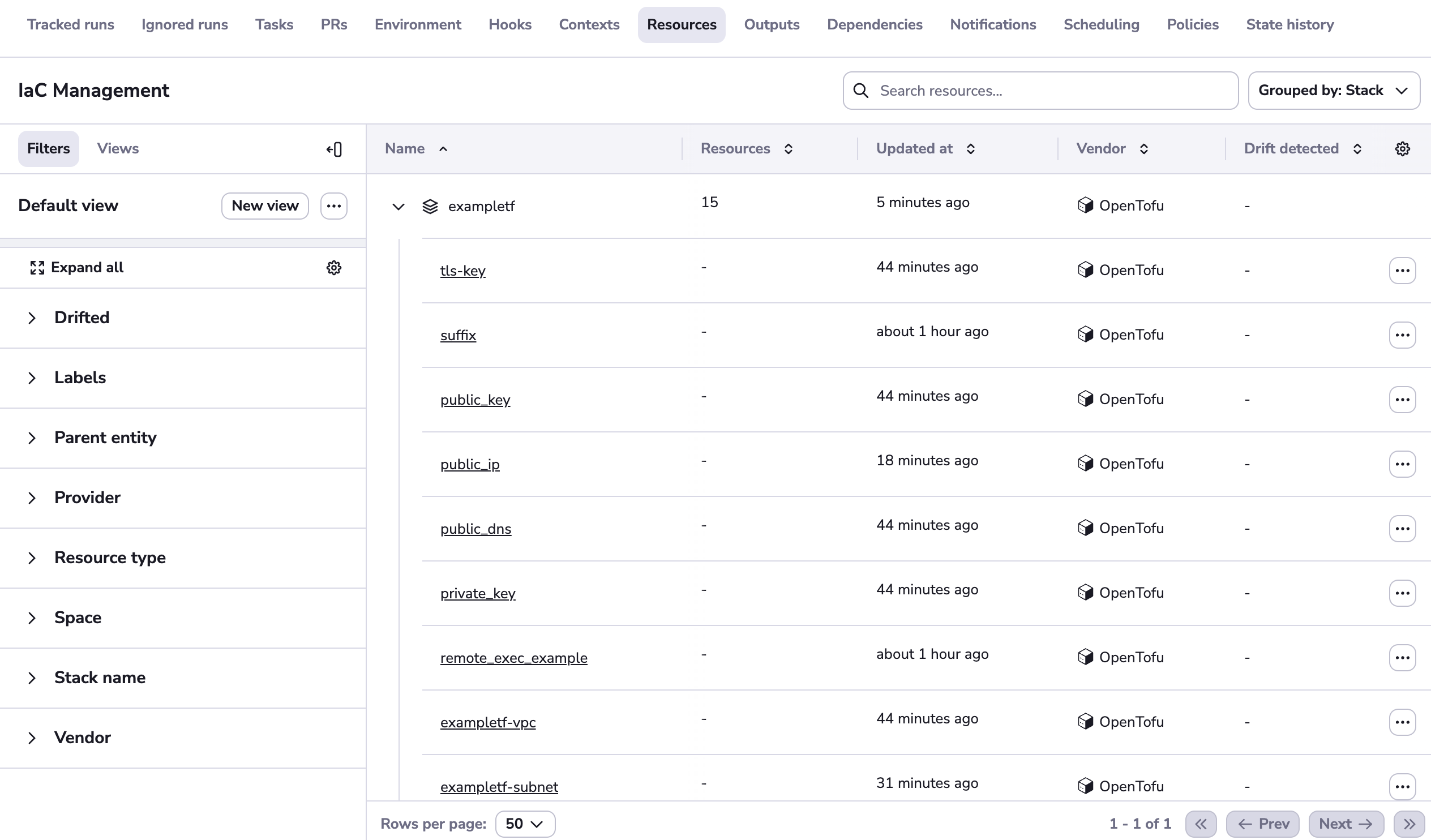
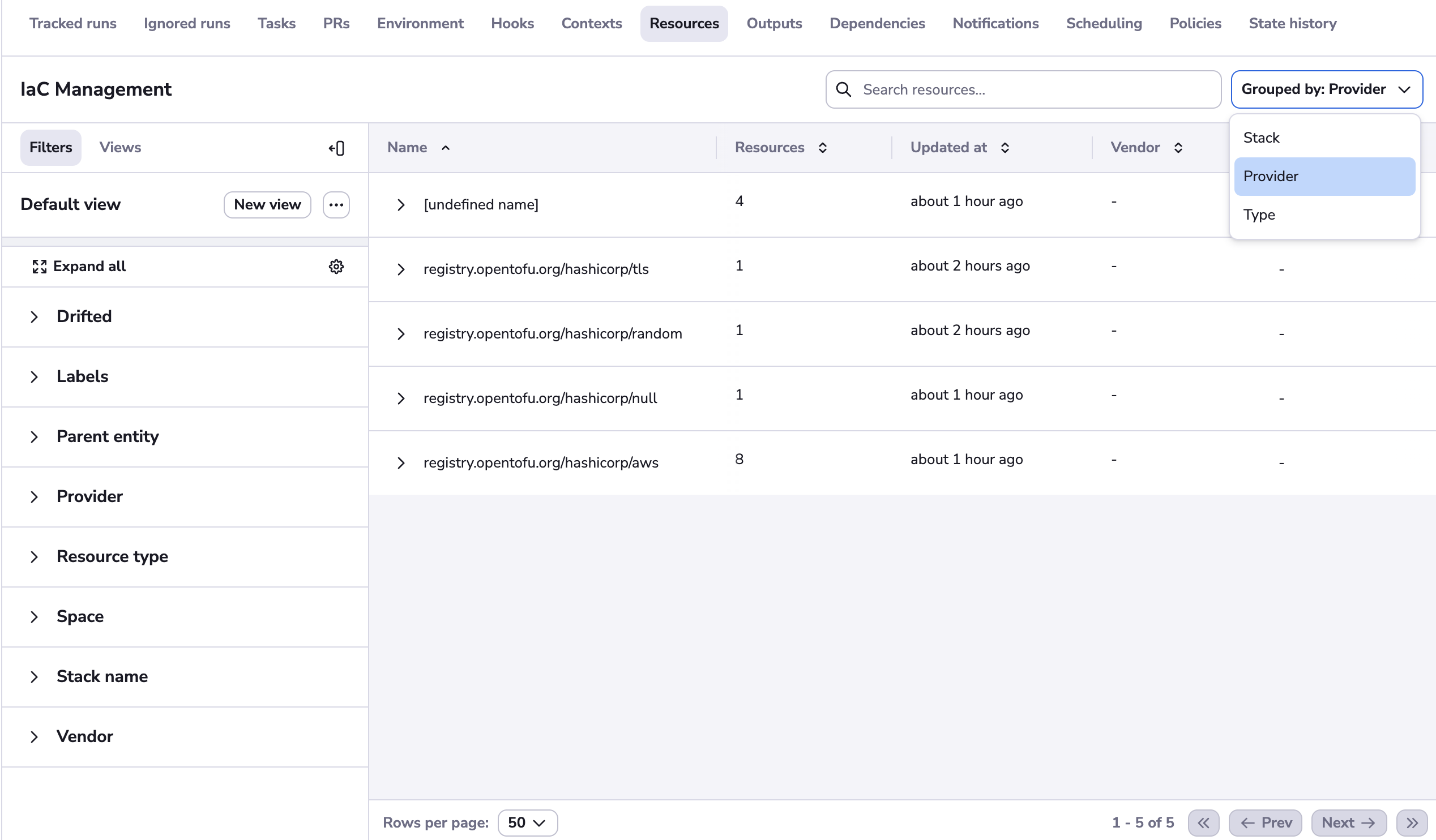
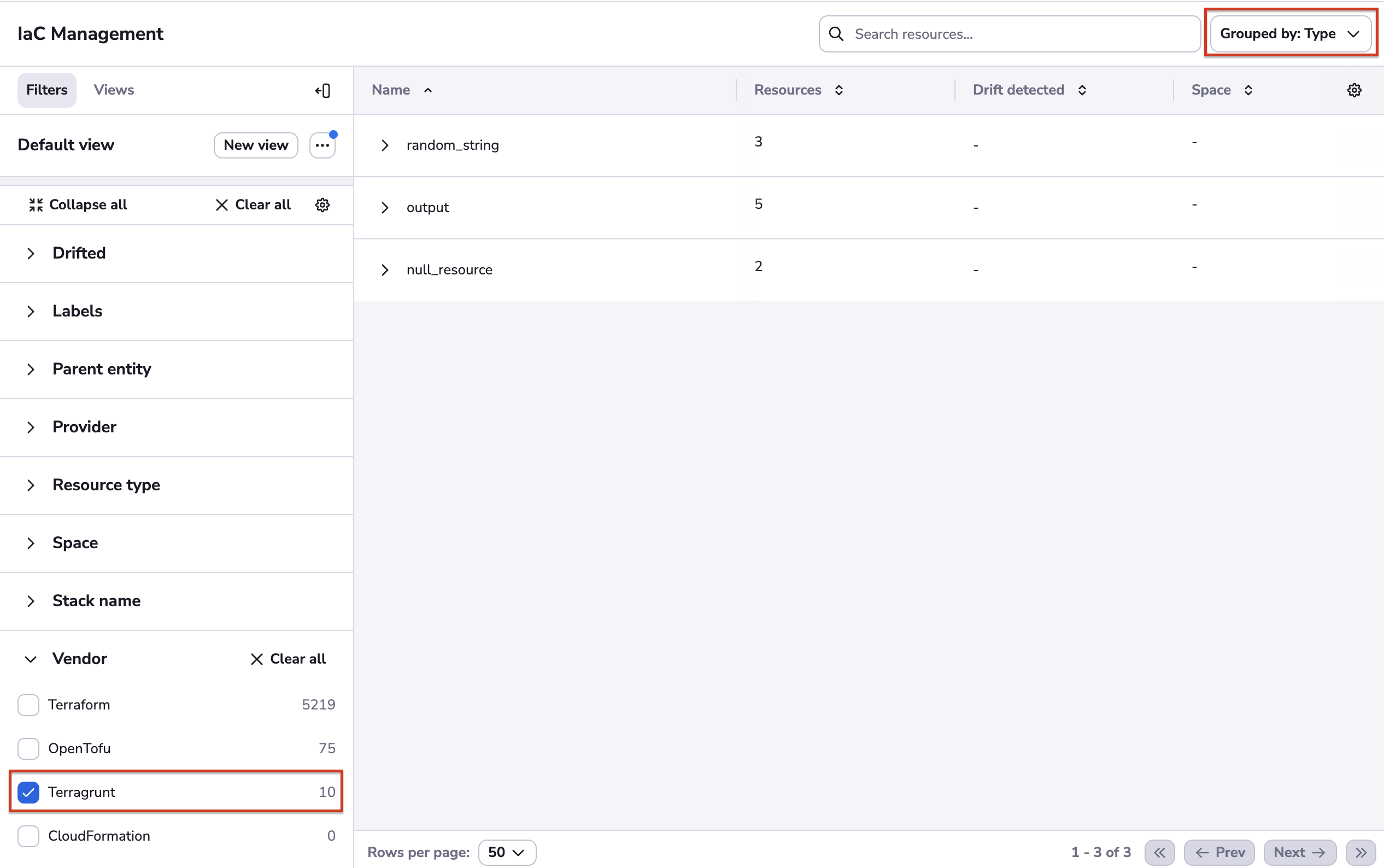
Resources can be grouped by type and provider:
If we click on a resource, a drawer displays its details:
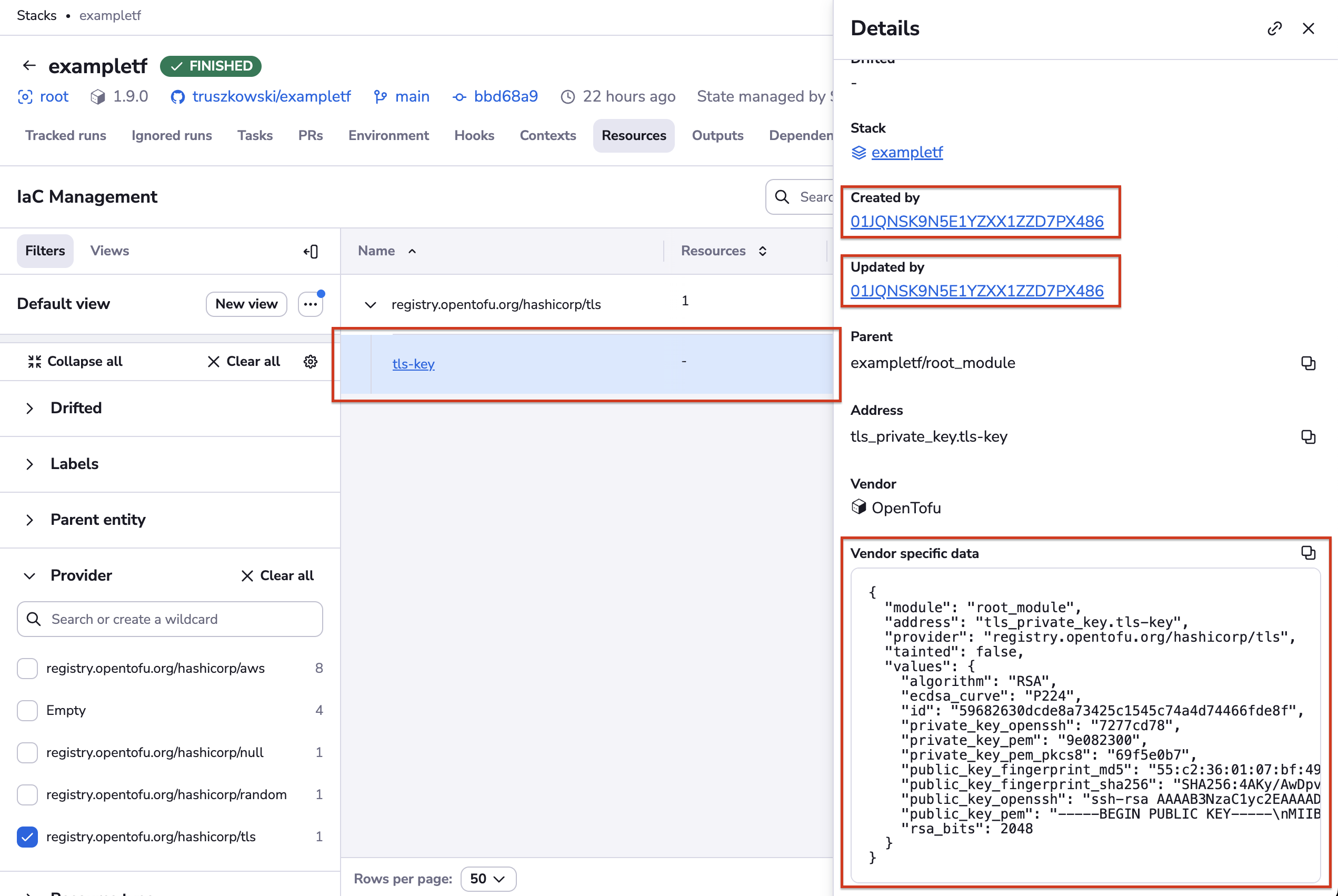
In the bottom-right corner is the vendor-specific representation of the resource. For security purposes, all string values are sanitized and never shown directly. Only the first seven characters of their checksum are displayed. If you know the possible value, you can easily do the comparison. If not, the secret is safe.
You can drill down to see the runs that either created or last updated each of the managed resources. Click the ID of the run in either the Created by or Updated by sections to be taken to the run in question:
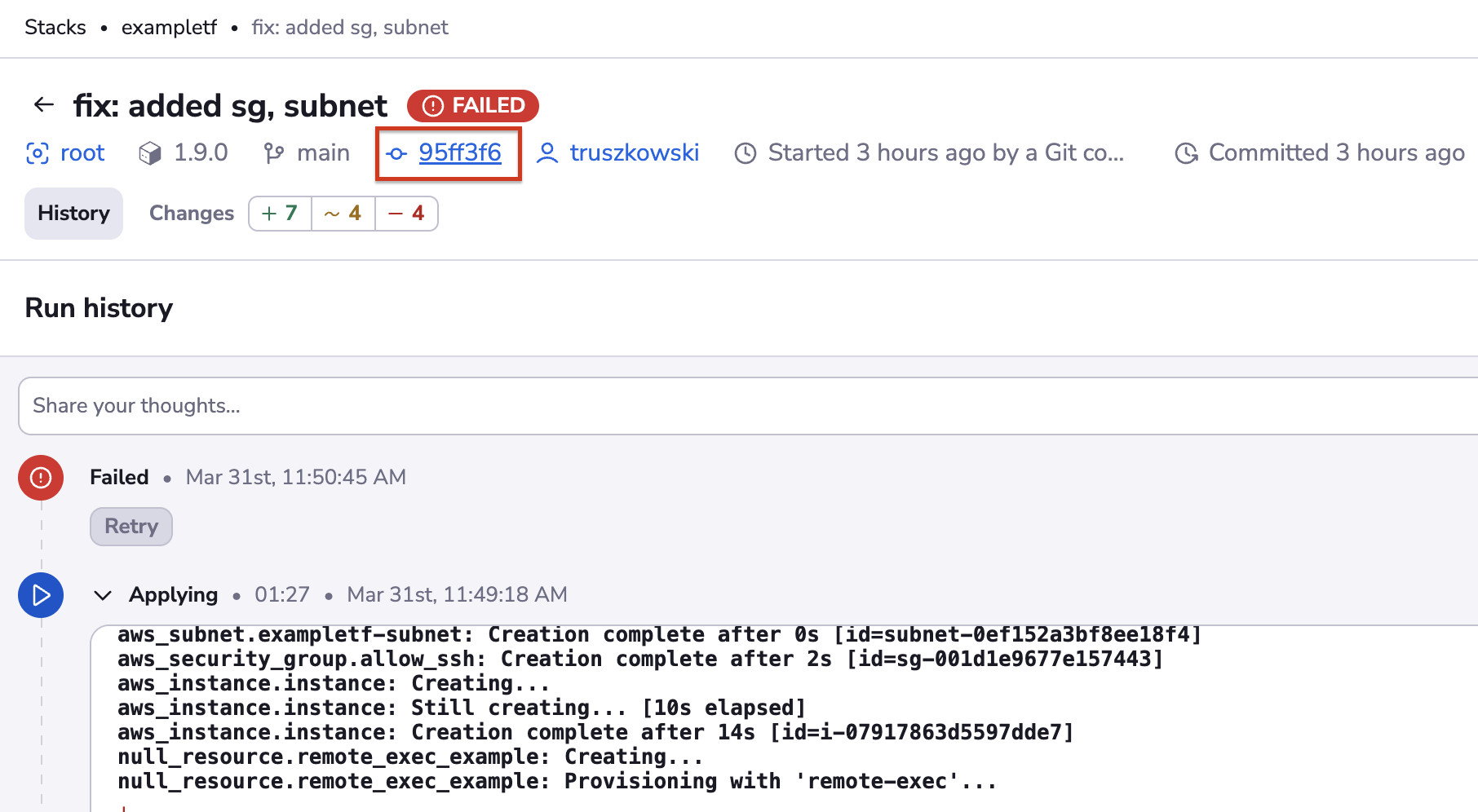
If you click the commit SHA, you will be taken to the GitHub commit. Depending on your Git flow, the commit may be linked to a Pull Request, giving you the ultimate visibility into the infrastructure change management process:

Account-level resources»
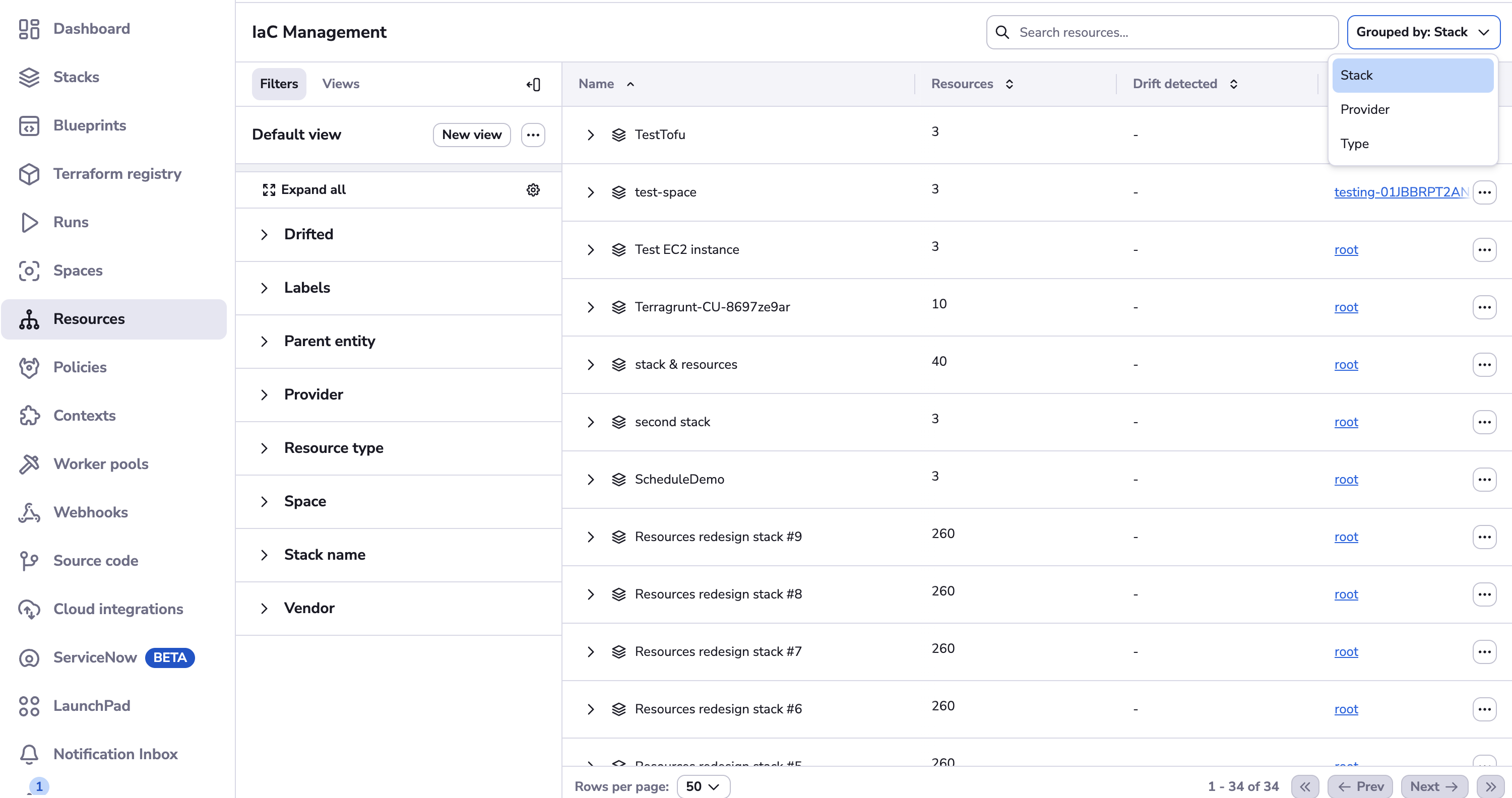
A view similar to stack-level resources is available for the entire Spacelift account. Navigate to Ship Infra > Resources.
Click the arrow beside a resource to expand it:
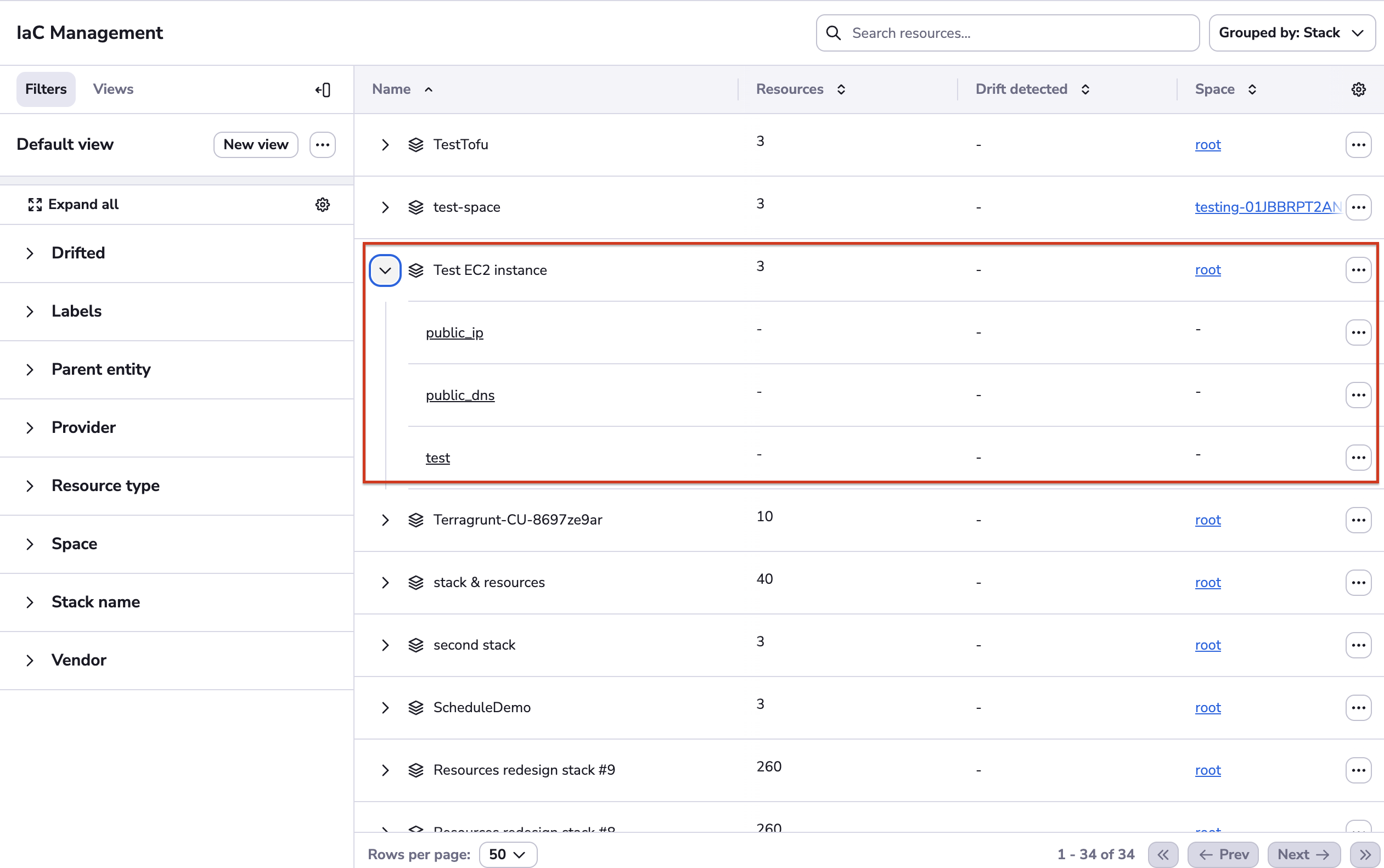
By default, Spacelift groups by stack, giving you the same view as for stack-level resources. At the account level, there are more rows in the table representing different stacks. You can filter and group by different properties.
Share resource details»
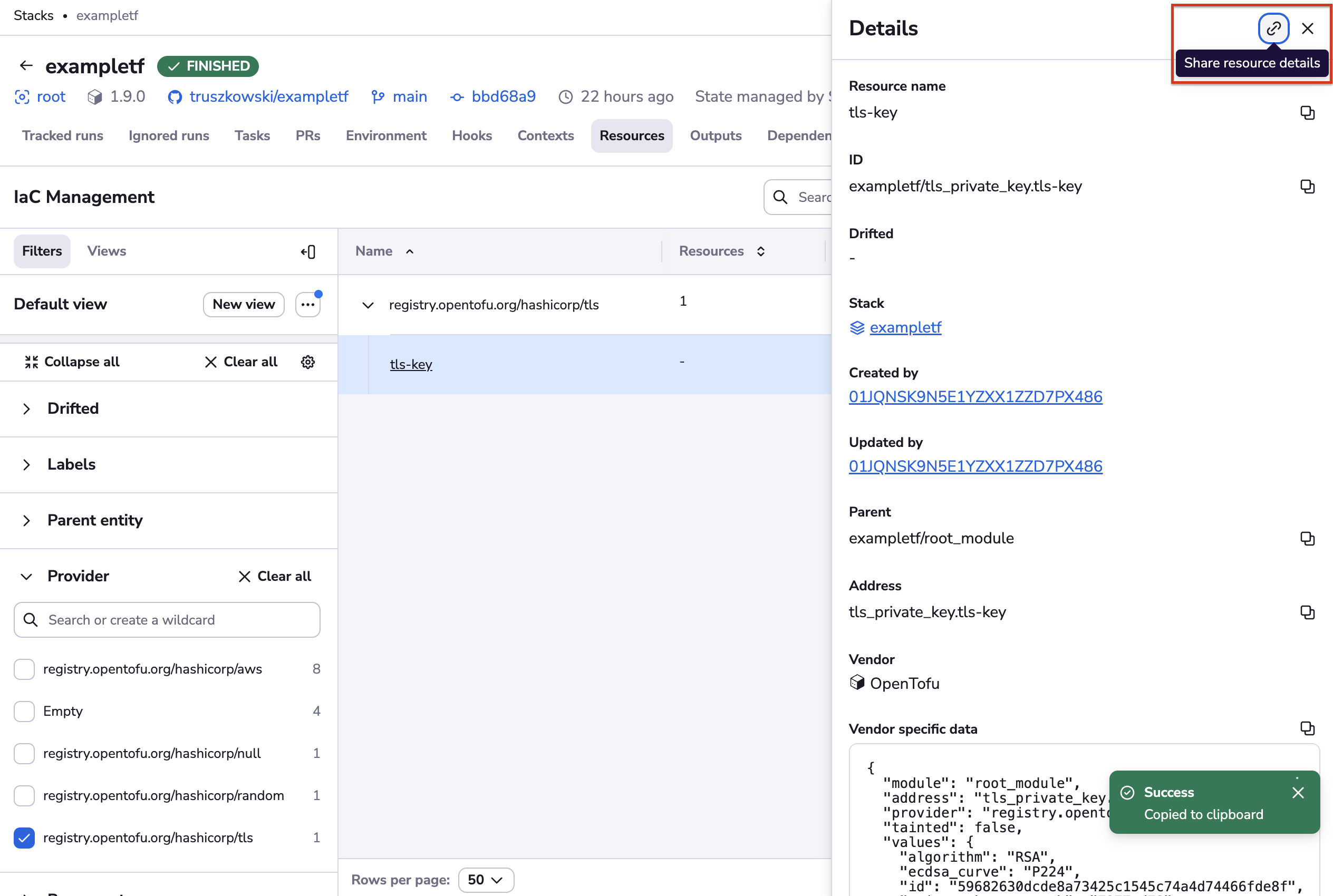
You can share a resource's details via a link by clicking the icon in the top-right corner.
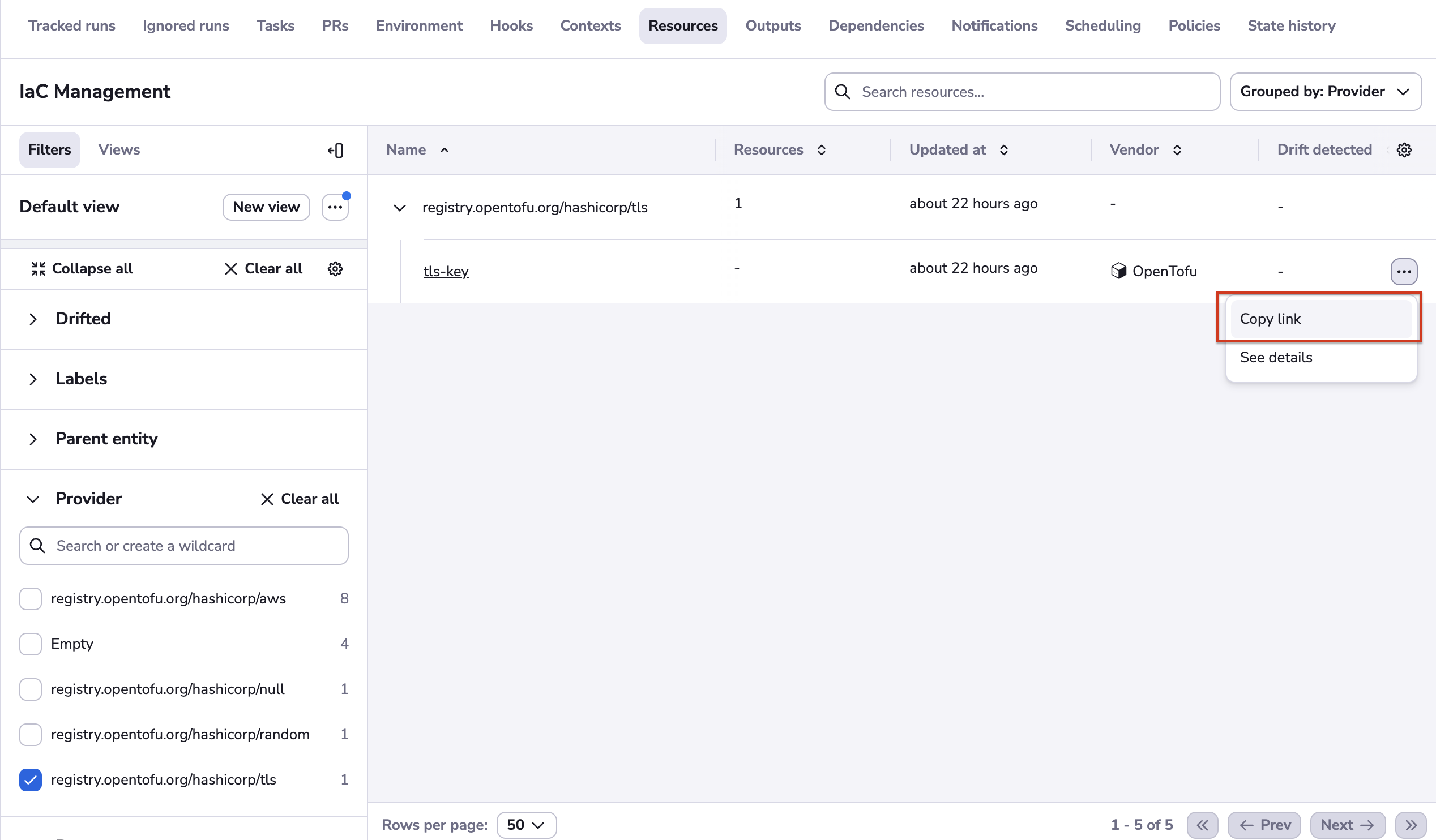
You can also click the three dots beside a resource on the table row and click Copy link.
Add filters from cells»
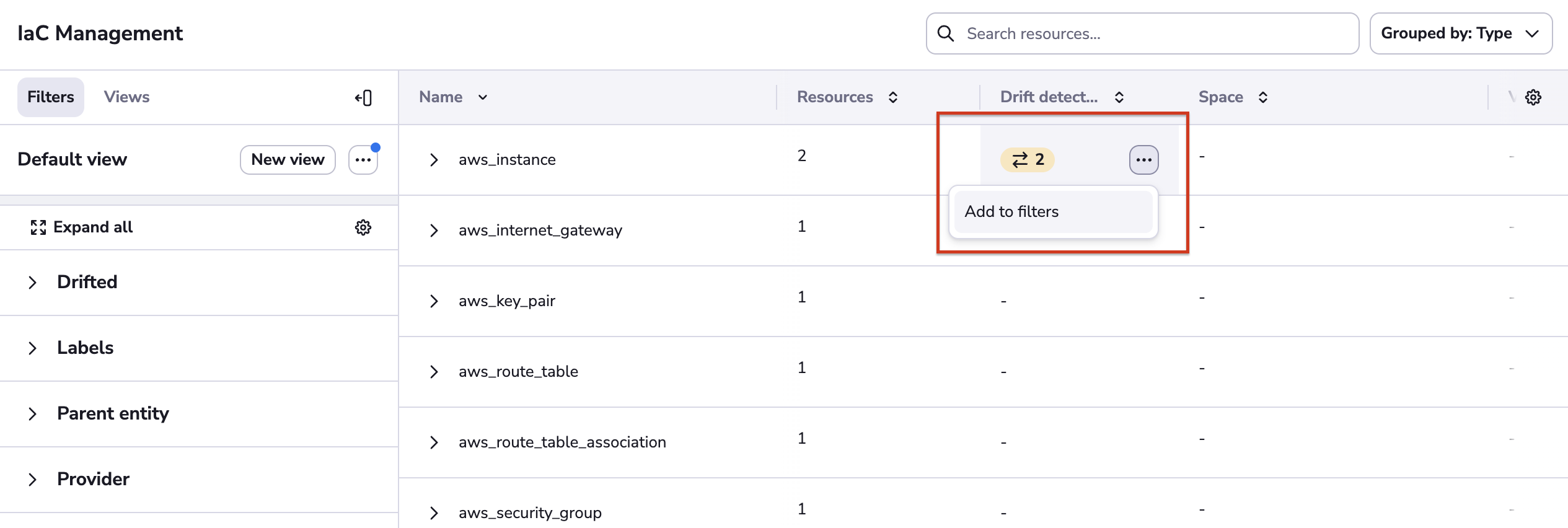
On the left side of the Resources view is the filter menu. You can add filters from the cells of the list by clicking the filter icon ("Add to filters").